User Manual
OrpheConsole Quick Examples
Version 1.0.3
This section provides common examples of how to operate and connect to the OrpheConsole device, including serial console access, SSH connections, file transfer, and remote service access through OrpheLink.
Environment
- OrpheConsole device
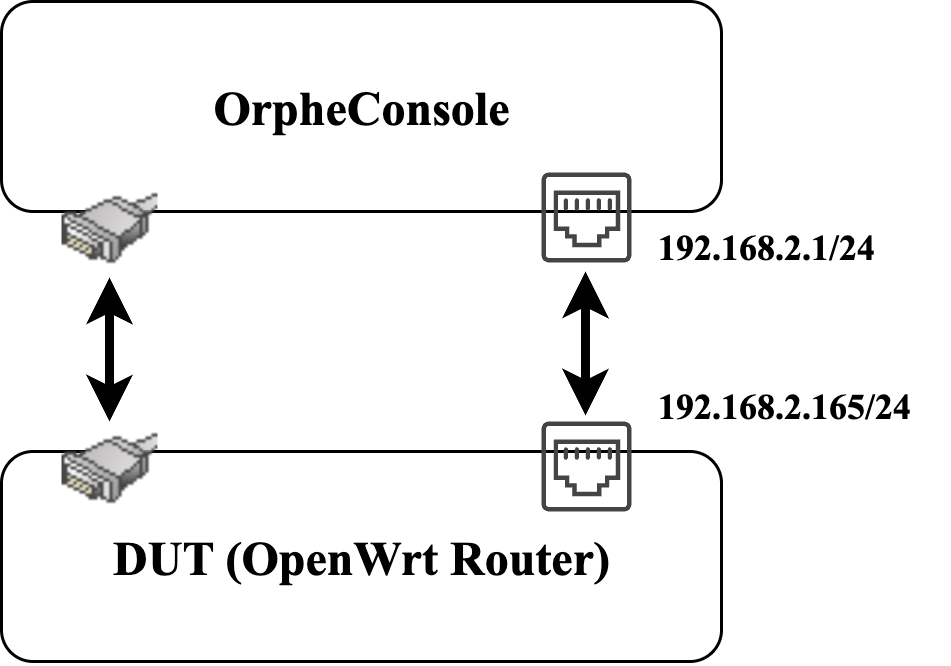
- DUT device — Equipped with an RJ45 MGMT port or Serial port.
- Ensure that the OrpheConsole device is powered on and properly connected to the DUT via Ethernet or Serial interface
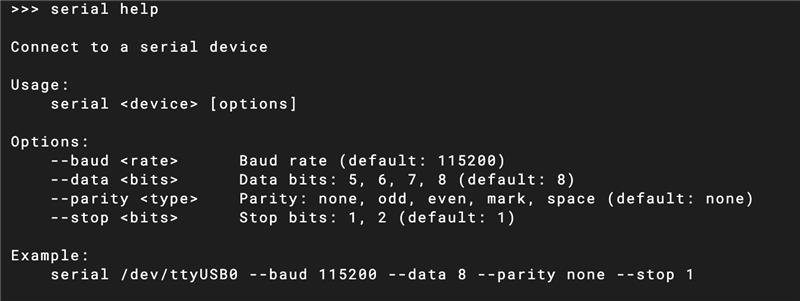
OrpheConsole Command Reference

Check Available Serial Ports
Confirm which serial device is available on your system:
/dev/ttyUSB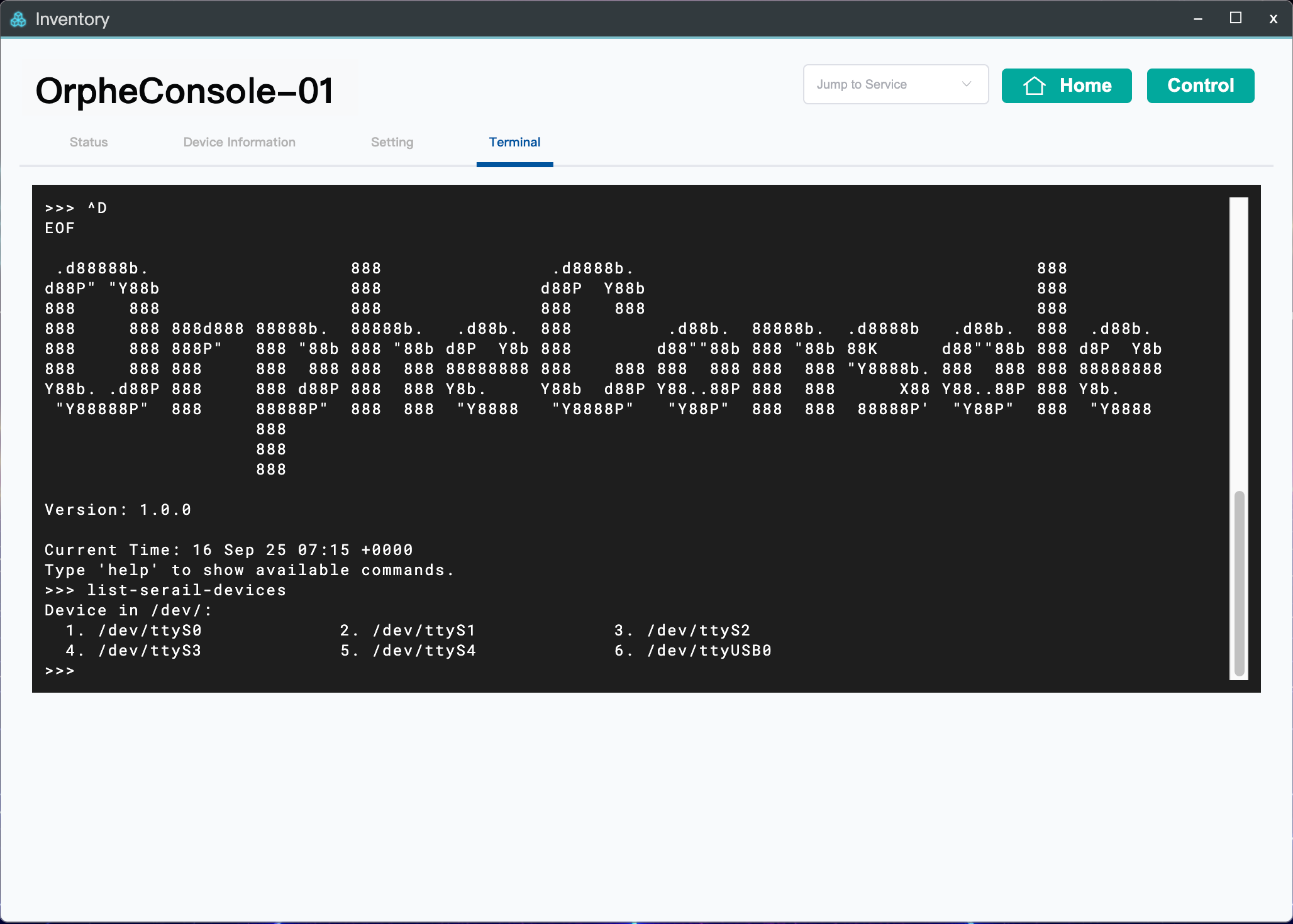
Connect to DUT via Serial command
serial /dev/ttyUSB0To specify a baud rate
serial /dev/ttyUSB0 115200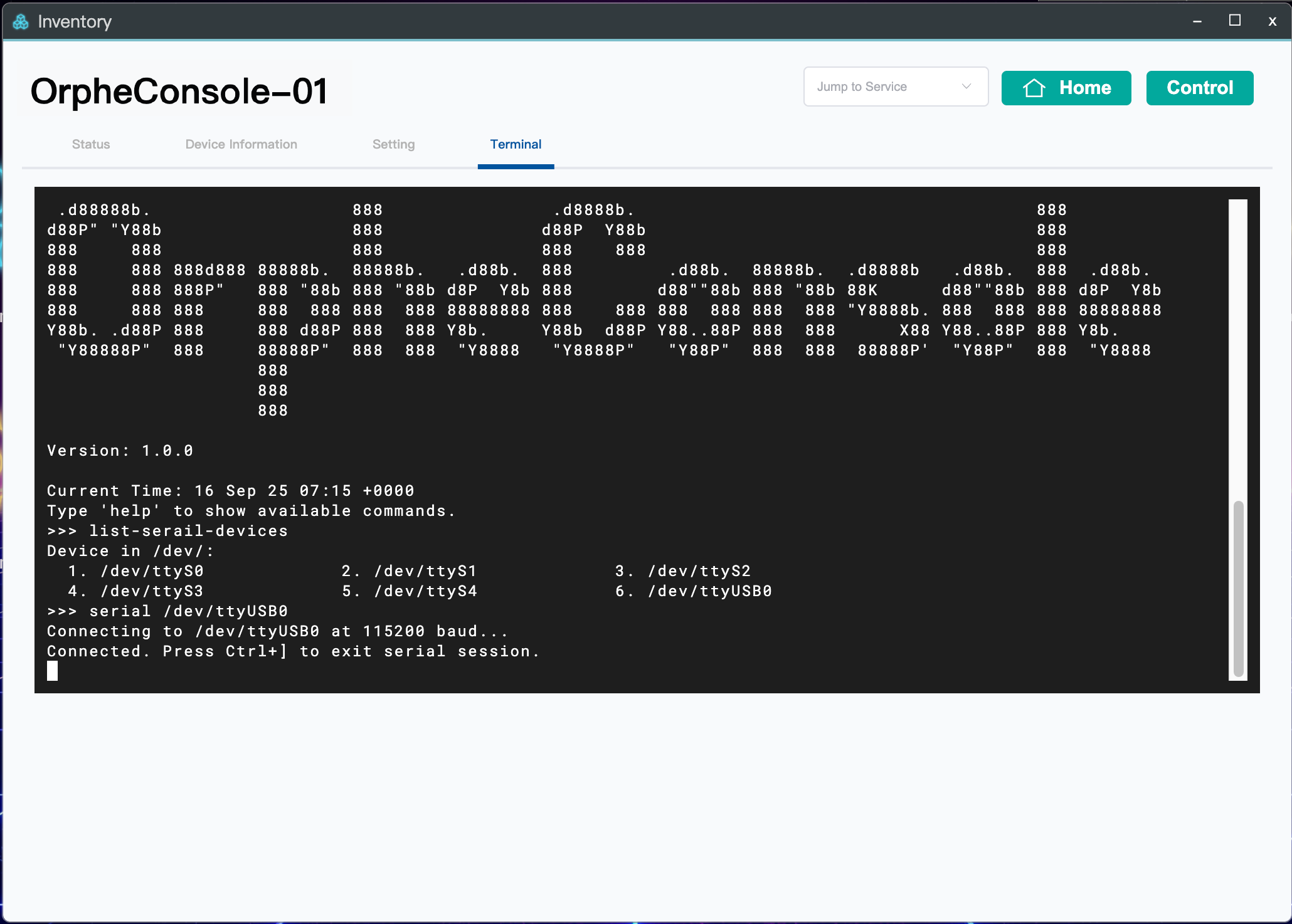
Once successfully connected to the DUT, you can begin performing operations on it through OrpheConsole.
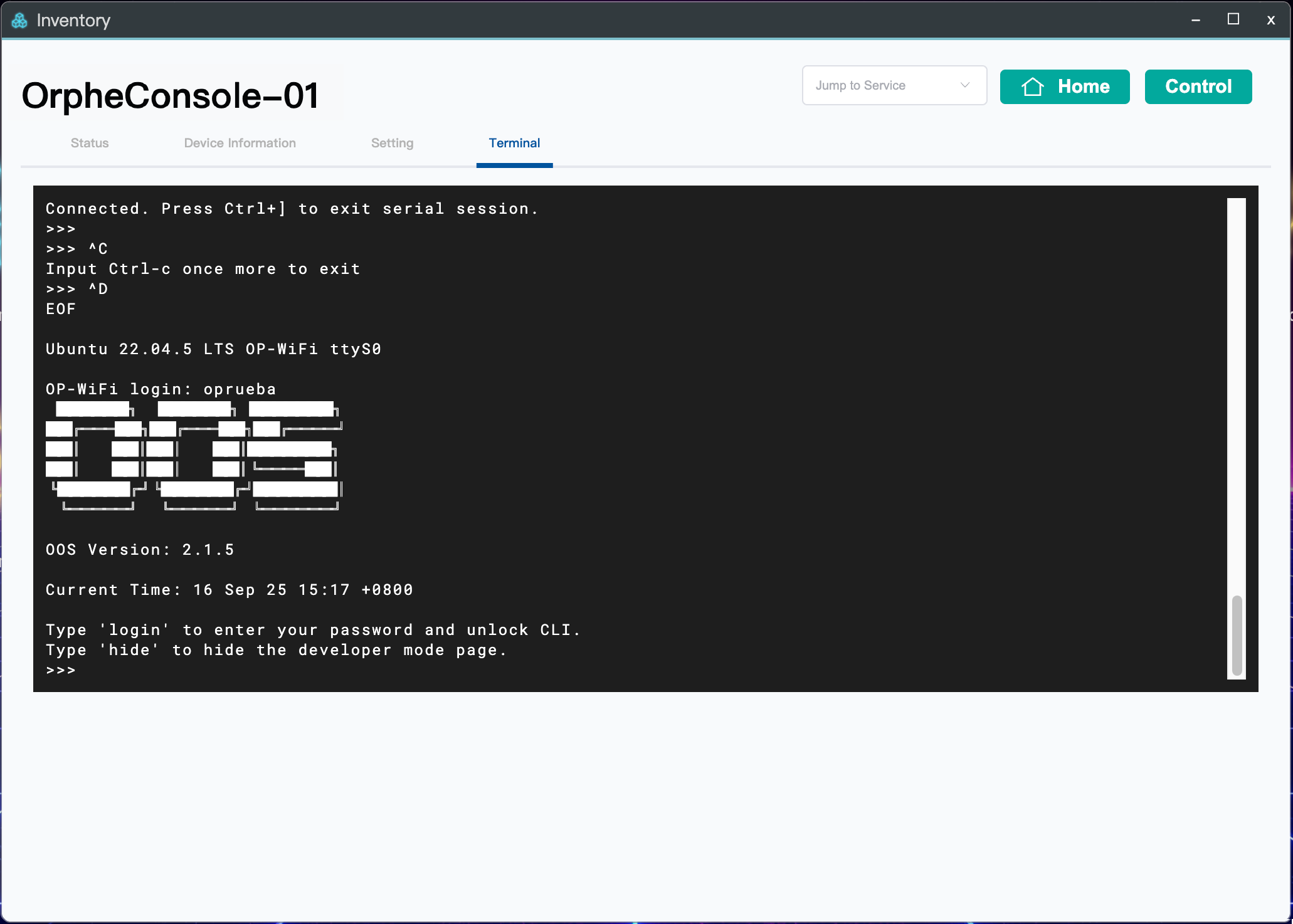
Exit Serial Session
To exit the serial connection interface, press the key combination Ctrl + J ,This will return you to the host terminal prompt.
Connect to the OrpheConsole via SSH
you can access the OrpheConsole system through SSH.
Default Account and password

ssh Account
Default password:
password
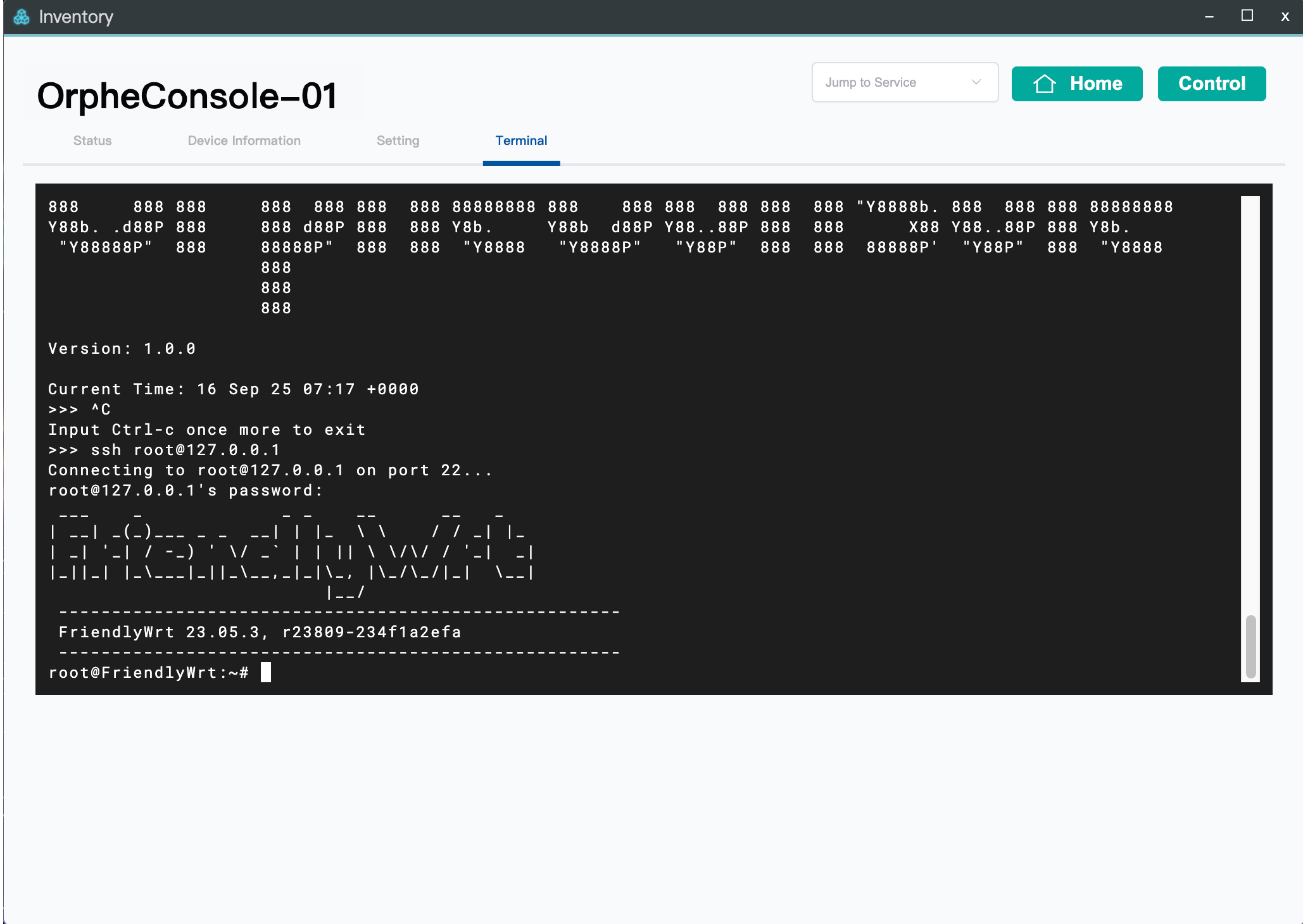
Tip: You can use SSH for faster configuration and automation, instead of the serial console.
File Transfer via SFTP
To enable file transfer between your local PC and OrpheConsole, install the SFTP client package:
opkg update
opkg install openssh-sftp-client
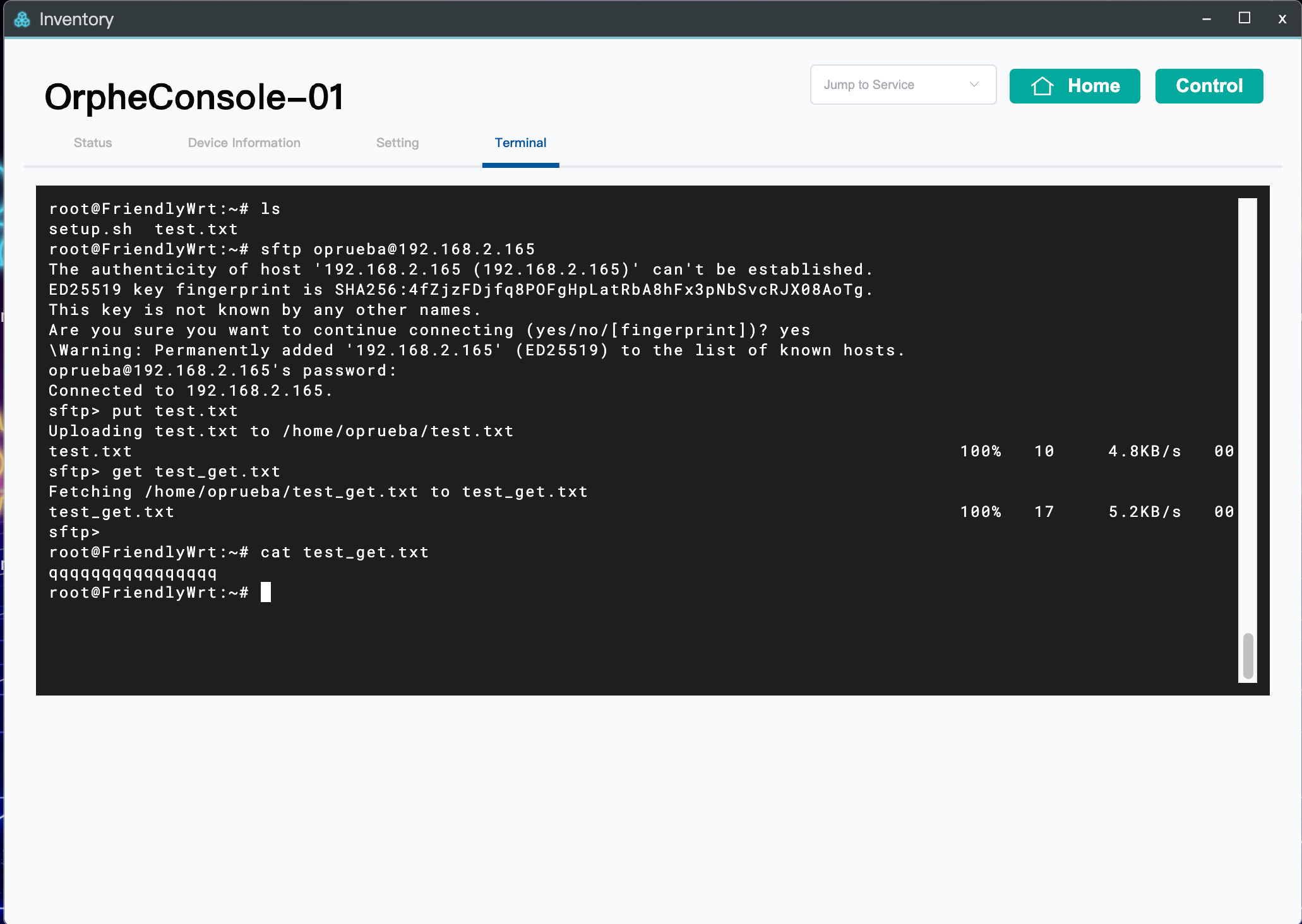
then, use the following command from your PC:

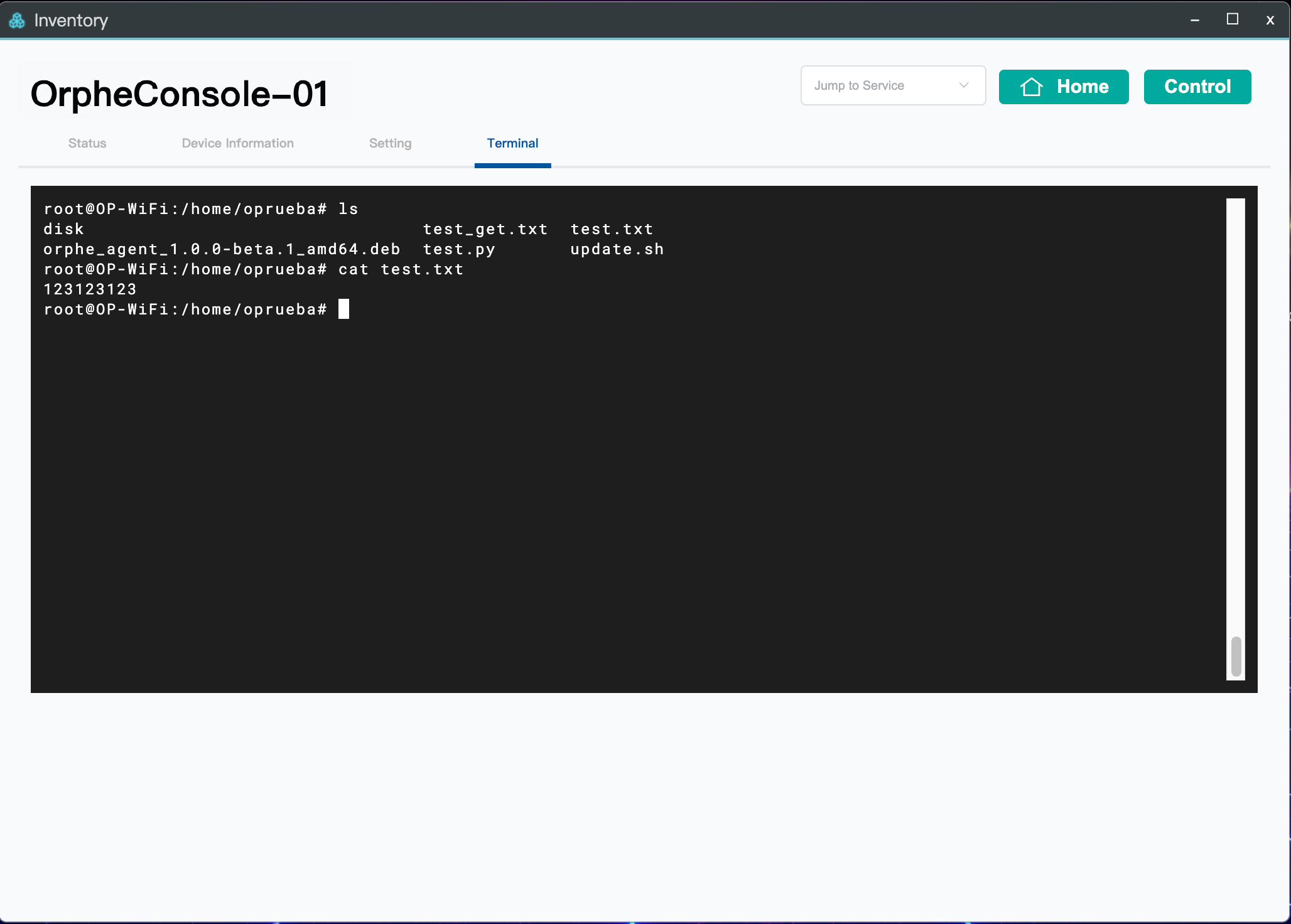
Connect to the DUT through the Serial Port to confirm that the transferred file has been successfully received and stored on the device.
ou can use the
lscommand to verify that the file appears in the target directory (e.g.,/tmp).
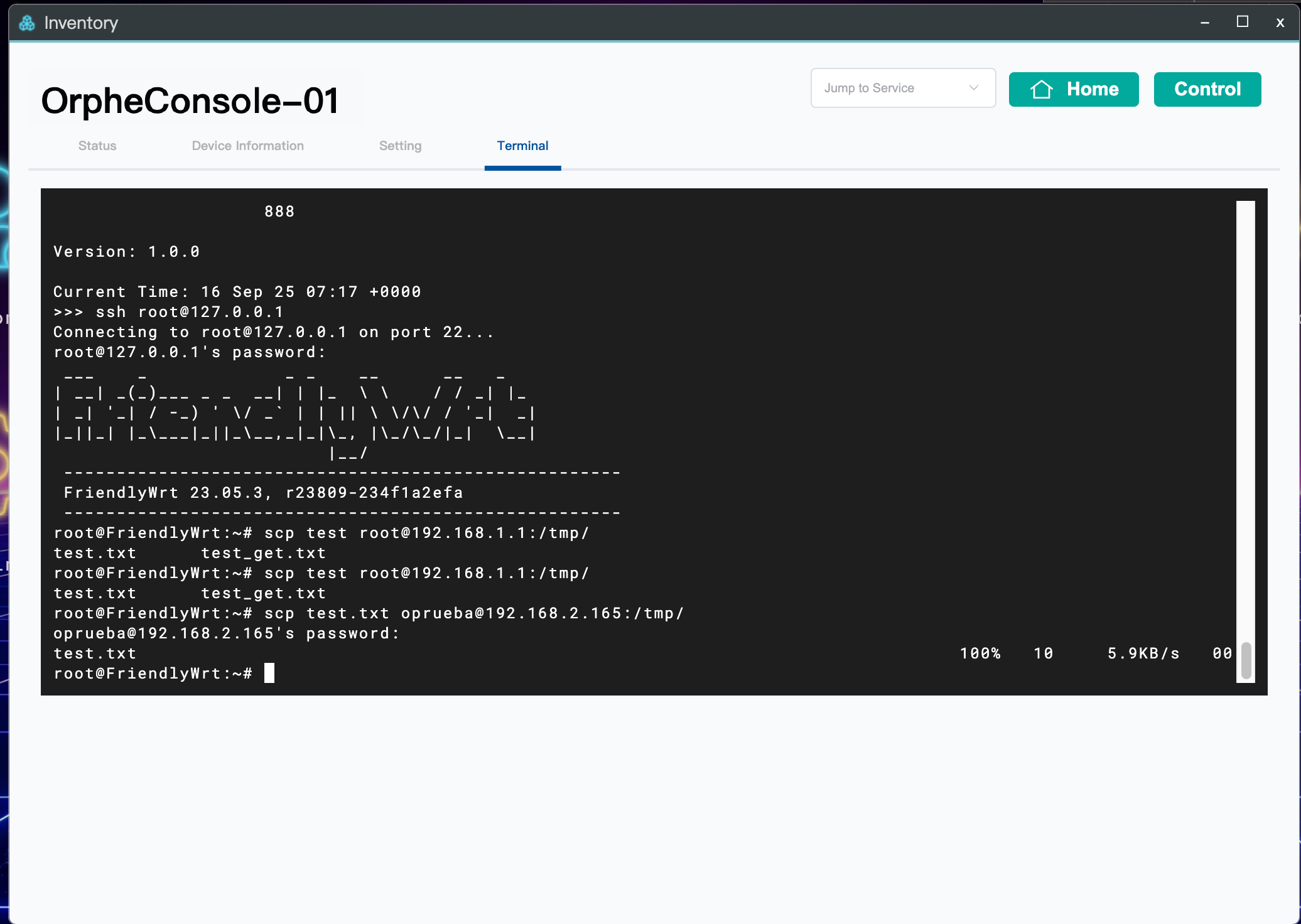
Transfer Files to the DUT Device (Using SCP)
To upload a file (e.g., test.txt) from your PC to DUT Device:

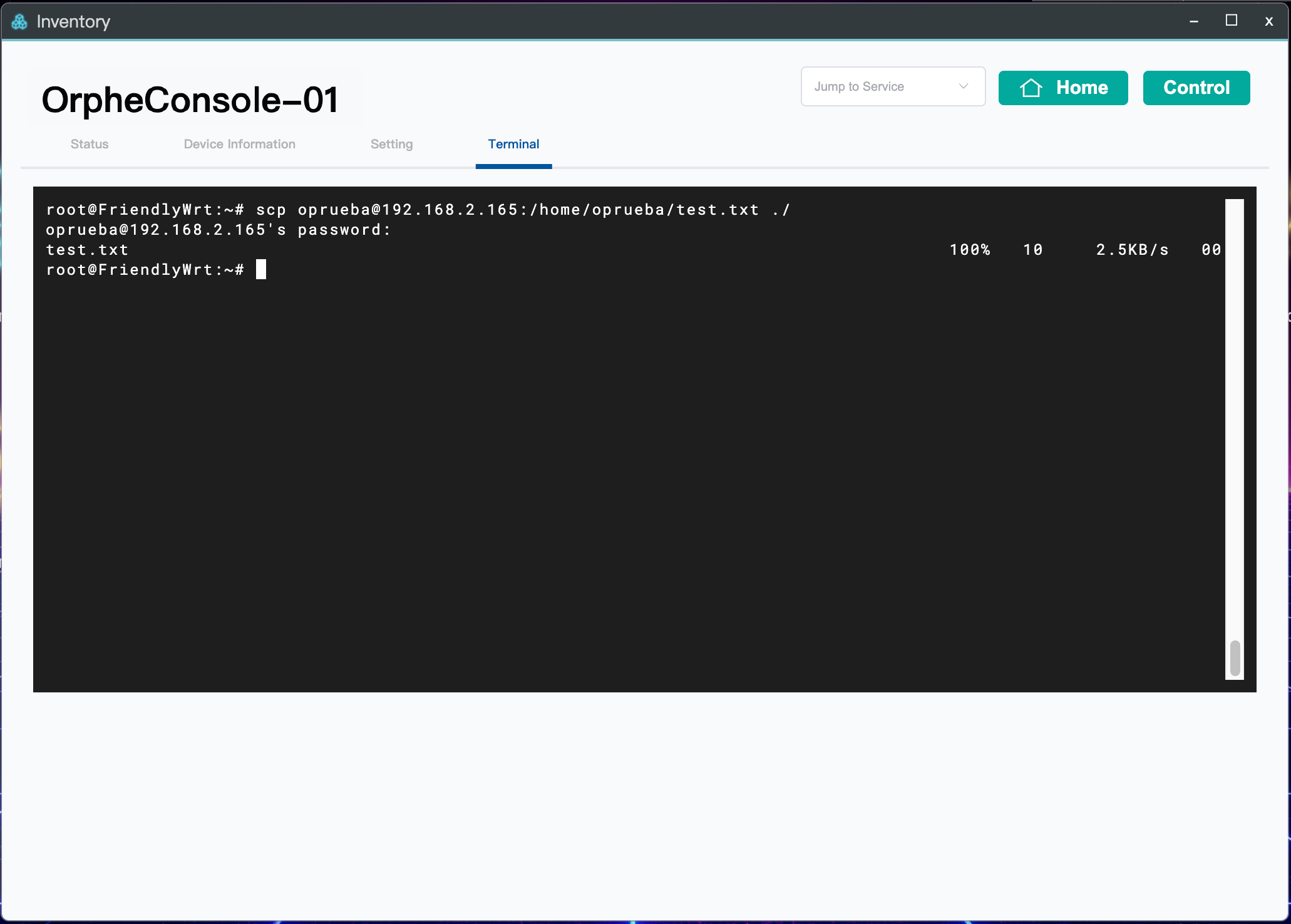
Transfer Files from DUT to OrpheConsole
Use the scp command to transfer files from the DUT to a specified directory on the OrpheConsole device.

Remote Access to DUT via OrpheLink (Jump to Service)
You can use OrpheLink’s Jump to Service feature to access services (like OpenWrt LuCI Web UI) running on a device connected to OrpheConsole.
Step 1 — Install Required Packages
On the OrpheConsole device, install socat and screen:
opkg install socat
opkg install screen
Step 2 — Start a Screen Session
screen -S socat
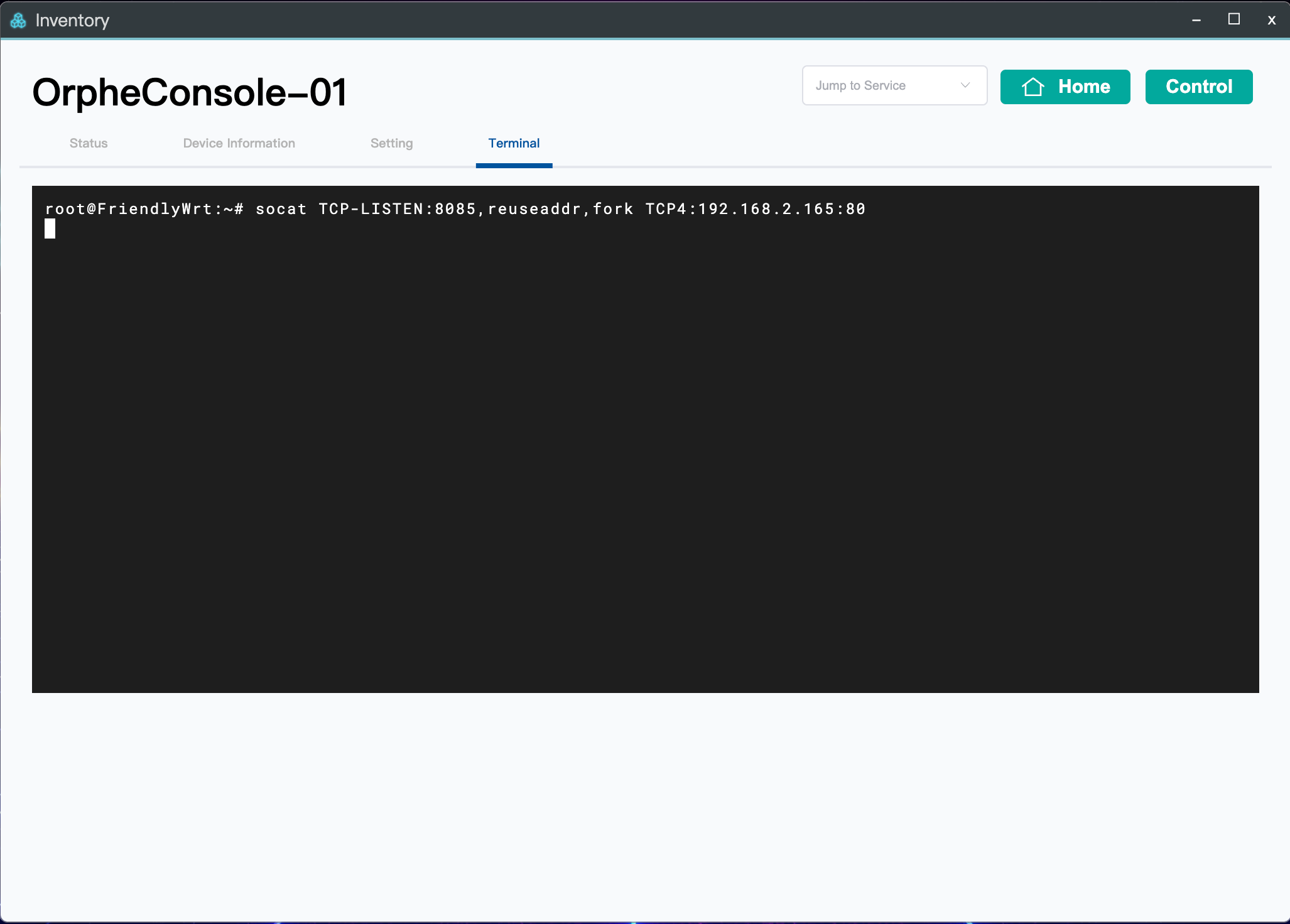
then, within the session, run the following command to forward the port:
socat TCP-LISTEN:8085,reuseaddr,fork TCP4:192.168.2.165:80
This command forwards OrpheConsole’s port 8085 to the DUT’s port 80, assuming that the DUT’s Web UI runs on port 80.
Configure Jump to Service in OrpheLink
In the OrpheLink UI:
- Login to OrpheLink and Click the Inventory icon.
- Click the device name
- Select Setting page
- Chose Jump to Service settings
- Click Add button to add Service
- Click save icon
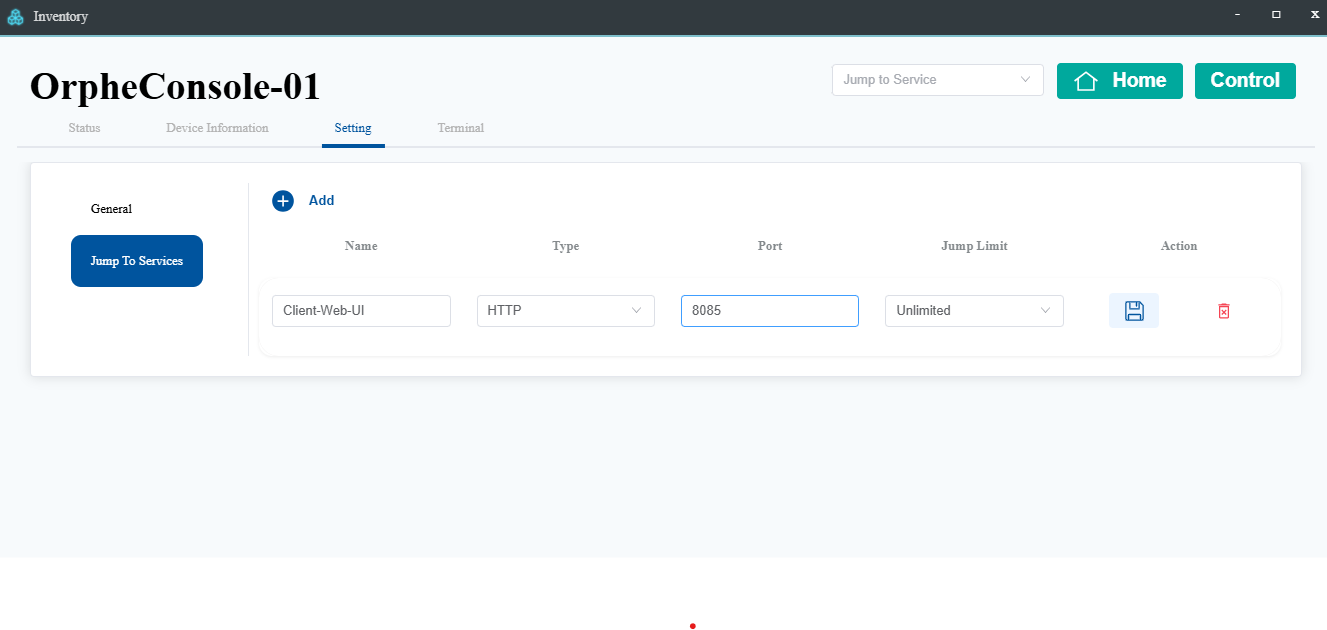
7. Select Client-Web-UI from the Jump to Service dropdown list.
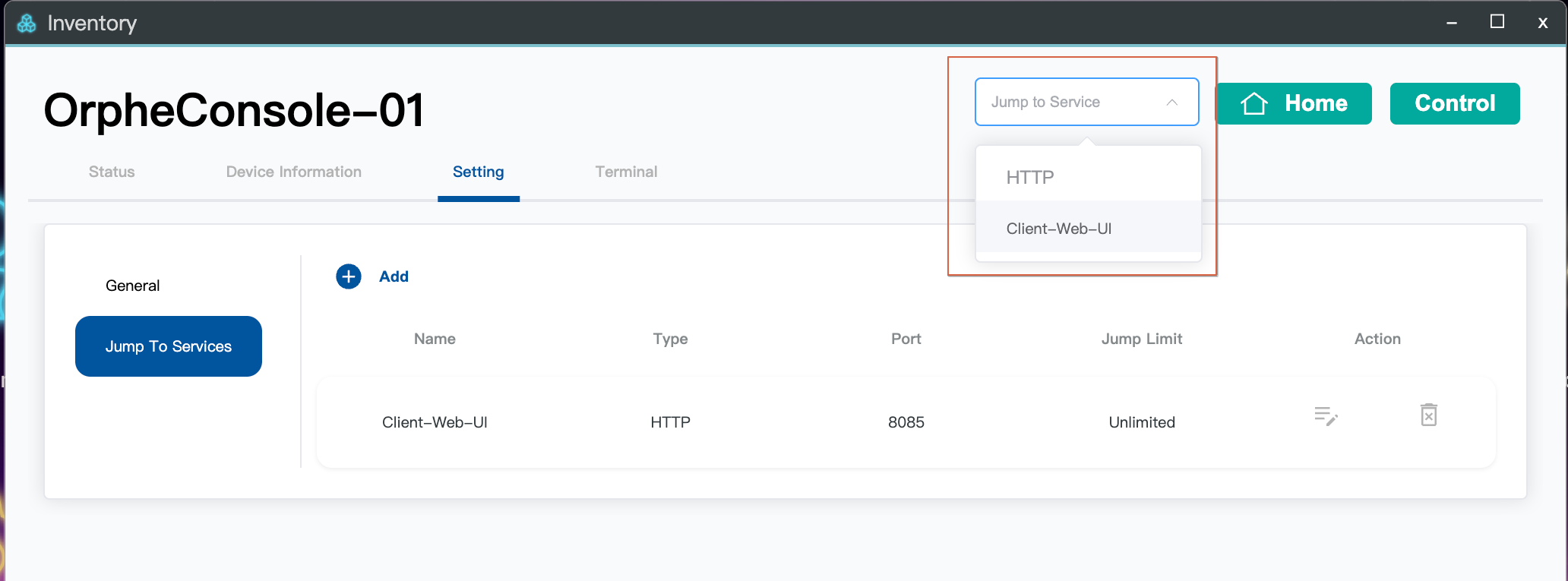
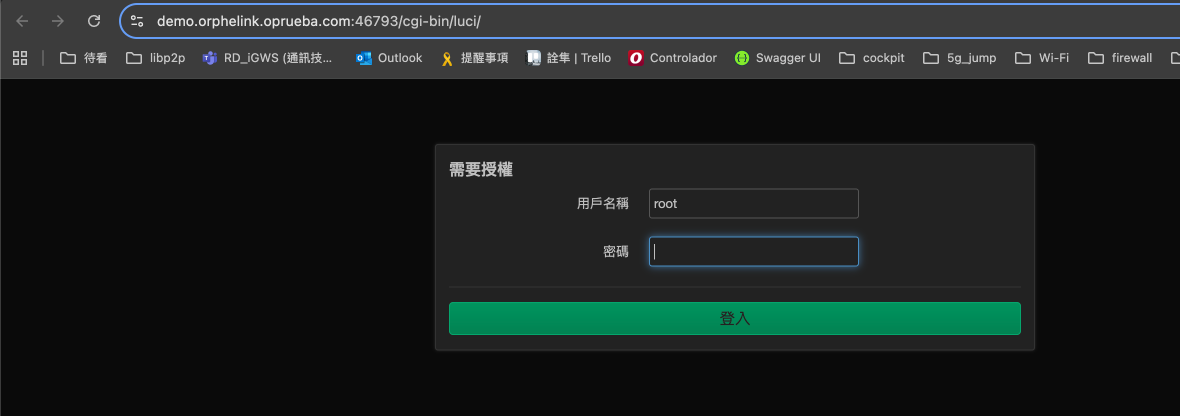
This allows you to remotely access the DUT’s OpenWrt LuCI Web UI via OrpheLink.