User Manual
Route
Version 2.1
-
Route
The configuration of static routes involves manual entry of routing information into a routing table by network administrators. This enables routers to accurately forward data packets to their intended destinations.
How to setup static route?
-
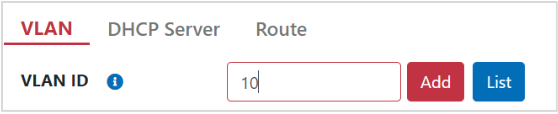
Step 1. Go to Networking > LAN > VLAN page.
-
Step 2. Add VLAN ID 10
-
Step 3. Go to Networking > LAN > DHCP Server page
-
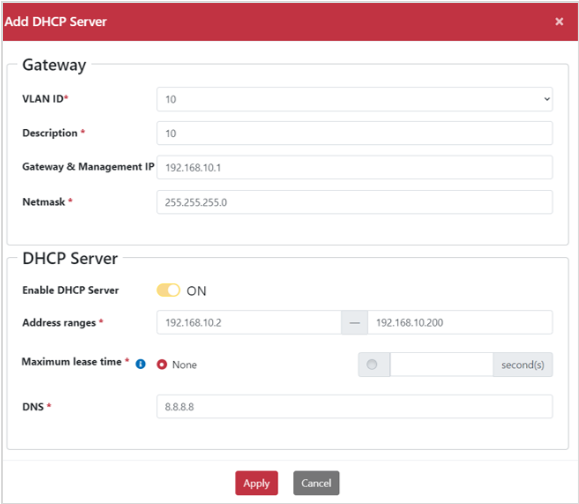
Step 4. Click “Add” button and pop-up “Add DHCP Server” dialog box.
-
Step 5. Select VLAN 10 in drop‑down menu.
-
Step 6. Type Gateway & Management IP “192.168.10.1”.
-
Step 7. Type Netmask “255.255.255.0”.
-
Step 8. Enable DHCP Server: ON.
-
Step 9. Type Address range “102.168.10. 2 – 192.168.10.200”.
-
Step 10. Type DNS “8.8.8.8”.
-
Step 11. Click “Apply” button.
-
Step 12. Go to Networking > LAN >Route page.
-
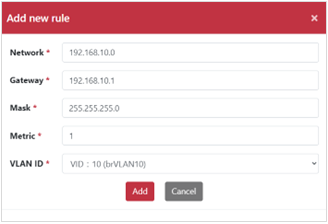
Step 13. Click “Add” button and pop-up “Add New Rule” dialog box.
-
Step 14. Type Network IP
-
Step 15. Type Gateway IP
-
Step 16. Type Mask IP
-
Stpe 17. Type Metric
-
Step 18. Select VLAN ID
-
Step 19 . Click Add button
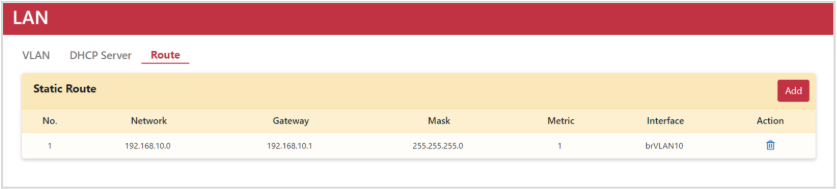
Static Route rule table as below.